How to use Slack effectively: 6 smart tips most teams miss
How to use Slack effectively by unlocking powerful features that streamline communication, automate workflows, and turn Slack into a true process hub.


If your company only uses Slack to send work messages (or say ‘kudos to you’), then you’re barely scratching the surface of what it’s capable of. But the problem doesn’t lie with Slack - it lies with how it’s being used.
Slack is much more than a chat app, but most users haven’t gotten past the basics. Let’s change that today, by finding out together what else it can do - we think you’ll be pleasantly surprised.
Quick Overview
Using Slack effectively involves a change in mindset where it becomes more than a messaging app and takes its place as a company data center, communications hub, and driver of internal workflows. This involves mastering channels, automation of important yet mundane tasks, and leveraging third-party apps. By expanding their view of what Slack offers, businesses find features that solve some of their most pressing problems.
Table of Contents
- Stop checking Slack channels. Let messages come to you.
- Don’t run meetings to find out what’s going on. Run stand-ups in Slack
- Stop asking ‘Who owns this?’ Make your org structure visible in Slack
- Stop answering the same questions. Let Slack be the teacher
- Make decisions without meetings: Use Slack polls instead
- Don’t answer vacation requests in email. Approve time off in Slack
- Bonus tip: Turn Slack into the company workhorse
- Conclusion
- FAQs: How to use Slack effectively
1. Stop checking Slack channels. Let messages come to you

If you keep Slack open ‘just in case’, you’re doing unpaid surveillance work. Since you’re not a private investigator, there’s no need to keep an eye on Slack messages. It’s low reward and high anxiety in any case. With keyword notifications, Slack will keep track of important messages without causing notification fatigue.
What changes immediately?
You stop feeling anxious about missing messages that require your urgent attention and confidently move forward with your to-do list without constant disruptions. Just imagine what it will be like when you’re not checking direct messages at 8 pm? Can we hear you say: ‘Work-life balance!’.
Do this now
- Open your Slack workspace, click on your profile pic (bottom left-hand corner).
- Preferences → Slack Notifications → Channel Keywords
- Add three keywords that are high priority, like: A client’s name, project name, a term, or phrase.
- Then mute channels that create a lot of noise.
Test the process. Trust the process. If Slack notifies you at the right moment, then you have just proven you can stop being a sleuth and get on with what you’re trying to do.
🔎 Learn to use keywords like a pro: Slack keyword notification: Quick setup guide
2. Don’t run meetings to find out what’s going on. Run stand-ups in Slack

You started running daily check-ins in a video call, instead of in person. That felt like real progress. But here’s the truth: You’re still interrupting deep work to exchange information that doesn’t need a real-time conversation. Most stand-up feedback feels more like a Slack status broadcast than a conversation, and Slack can do this better than a meeting ever could.
What changes immediately?
Stand-ups happen asynchronously, in their own time, but still offer the same value - keeping you up-to-date with important tasks, projects, and deadlines. Team communication is streamlined to reduce distractions, and blockers are dealt with immediately.
Do this now
- Create dedicated channels for check-ins.
- Post three fixed prompts, e.g., What did you work on yesterday? What important deadlines do you need to work on today? Are there any blockers to your progress? (You can customize this according to your needs.)
- Schedule the prompt to appear each morning, and ask people to respond by a certain time.
3. Stop asking ‘Who owns this?’ Make your org structure visible in Slack
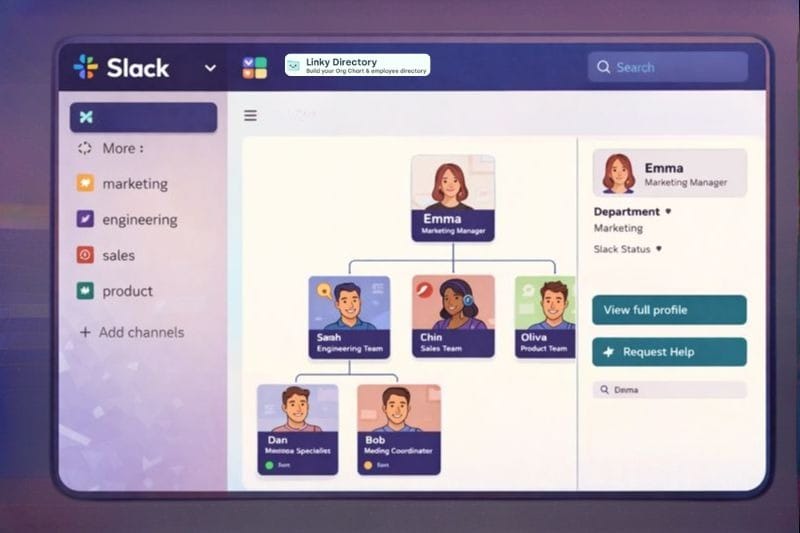
If your team regularly asks, ‘Who owns this?’ or ‘Who should I talk to about this?’ your org structure isn’t working for you. This isn’t a people problem; it’s a visibility problem.
If the Slack app is already where all your conversations live, then why not go one step further and make it the place where you display team structures and role responsibilities?
What changes immediately?
Fewer misdirected messages (that get lost in black holes), faster decisions, and new hires who know how to get help faster.
Do this now
- Create different channels, per function or department.
- Pin a short message that answers, ‘What this team does, who leads it, and how to request help.’
- Add new hires to these channels during the employee onboarding process so that they learn simply by being present.
Want this to be even easier and more effective? 👉 Linky Directory in Slack helps you build an org chart in seconds, customize employee profiles, and search anyone in the organization.
4. Stop answering the same questions. Let Slack be the teacher

Do you feel like you’re answering the same questions again and again? Your team probably isn’t forgetful; they’re just having a hard time dealing with all the internal communications. When information isn’t readily available, it’s easier to ask the question again, instead of trying to remember where and when it was discussed.
What changes immediately?
Most important information lives in public channels or long-forgotten messages. Team members need a central hub where they feel confident they’ll find what they’re looking for. For new employees, this means faster onboarding and decision-making.
Do this now
- Create channels to deal with common questions, or one channel with different threads.
- It may take a little more time initially, but thoroughly answer the question, giving it a clear title. E.g., ‘Who approves vendor invoices?’
- Show your team/s how to use the Slack search function.
5. Make decisions without meetings: Use Slack polls instead

Many teams run meetings for a surprising reason: Indecision. We can see you nodding because you know how many work hours are wasted on this.
‘What do you think? What should we do about this? Which choice should we go with?’ Don’t need a meeting, and you can use Slack to collapse unnecessary meetings in minutes by running polls instead.
What changes immediately?
Decisions move speedily forward without the frustration of waiting for a meeting, and the outcome is documented immediately.
Do this now
The next time you’re wondering how to gather team members across different time zones, just to decide on the best gift for Sam’s workaversary, post a poll instead.
- Draft a new message in Slack.
- List your options in the message, using an emoji for each option. E.g., Option A - 😃, Option B - ⭐
- Send the message and instruct team members to reply with the emoji that represents their preferred option.
Create polls in seconds with a question bank, and receive powerful insights into responses with Pulsy Survey in Slack. It does much more than collect responses; it also sends reminders and nudges employees who haven’t completed their responses.
6. Don’t answer vacation requests in email. Approve time off in Slack

Vacation requests are a small task that can cause a great deal of confusion and upset. When emails get missed, approvals are forgotten, and someone takes off before getting confirmation, it can be difficult.
Since Slack is a communication tool, it just makes sense to bring vacation approvals and tracking into Slack.
What changes immediately?
No more digging through emails and awkward follow-ups on that unread message. Just total visibility over everyone’s leave status, all the time.
Do this now
Set up a simple Slack workflow where employees submit vacation requests by using a form or using Palmy Vacation in Slack. Palmy completely removes the manual work of approving and managing vacation balances. With one-click approvals, calendar sync, and Slack status update, you’ll always be on top of PTO.
Bonus tips: Turn Slack into the company workhorse
Conclusion
Slack can do much more than just send messages between teams. It has a host of powerful features that can drive your business processes. The real change takes place when you stop asking your team to manage Slack and introduce small changes (like the tips we’ve shared) to remove the problems your team has learnt to live with.
FAQs: How to use Slack effectively
1. What is the best way to use Slack?
The best way to use Slack is to see it as a shared workspace for important business processes, and not just a messaging platform. Slack is an intelligent communication hub for business. It not only stores conversations and organizes them by context, but also retrieves them based on triggers such as words, keyword notifications, mentions, and specific events. It can also automate many tasks that consume mental and creative energy, freeing teams to focus on other priorities.
2. How do I make Slack more efficient?
Slack becomes more efficient as you expand its use across your business. This isn’t just about reducing noise from messages, or replying with a ‘thumbs up’ emoji. This is about automating workflows, leveraging integrations to deliver the right data at the right time, and turning Slack into a sophisticated, searchable knowledge center for your business processes.
Begin by organizing important clients and projects into channels and applying Slack keyword notifications to these channels. The next step is to connect those channels with tools you already use, so information flows into a central point and is analyzed correctly. Lastly, use Slack workflows to standardize tasks within these channels.
3. Does anyone have access to my private messages in Slack?
In most workplaces, paid Slack plans grant administrators access to pull data for compliance, legal, and HR purposes. To view private messages, administrators must request permission from Slack to export data from specific channels or conversations. Admins cannot see messages in real time on the interface, and Slack policies require that requests to view private channels or DMs be logged for security.