Slack tips for beginners: A practical guide to getting started
Slack tips for beginners: Learn how to use channels, messages, notifications, and calls so your team communicates clearly and confidently from day one.


Hello, Slack Newbie! Thank you for joining us here at BuddiesHR, where Slack takes center stage in the development of our employee engagement apps. That just means, ‘we love Slack’ and we think you will too, once you get onboard with all its basic functions.
For many teams, Slack has taken the place of long email threads, reduced the need for unnecessary communication, and made collaboration feel more human. We developed this guide because we understand the overwhelm of using Slack for the first time, so stick with us as we take you from ‘novice’ to ‘natural’ in minutes.
Quick Overview
Slack for beginners means learning how to use Slack as your primary communication tool. This includes how to set up a Slack Workspace, profile, channels, direct messages, and how to use emoji reactions and @mentions for faster replies. By understanding the basics, new users can communicate clearly and stay organized from the start.

Table of Contents
- Why Slack is a good choice as a communication channel
- Slack interface: Doorway to powerful team conversations
- Channels: The heart of Slack
- Messages: How work gets done in Slack
- Notifications: Managing the Slack information highway
- More tips for beginners: Super smart Slack features
- Final Thoughts
- FAQs: Slack tips for beginners
Why Slack is a good choice as a communication channel
By the very core of its design, Slack is a fast and efficient messaging platform for work. First developed as an internal communication tool for Tiny Speck in 2012, it evolved into Slack, standing for Searchable Log of All Conversations and Knowledge.1
Instead of emails bouncing back and forth, Slack organizes topical conversations into shared spaces called channels. With all the right people, information, and tools in one place, teams can get work done faster and more efficiently. This is what makes Slack so popular with businesses - and the ability to receive and share important information in real-time.
Slack interface: Doorway to powerful team conversations
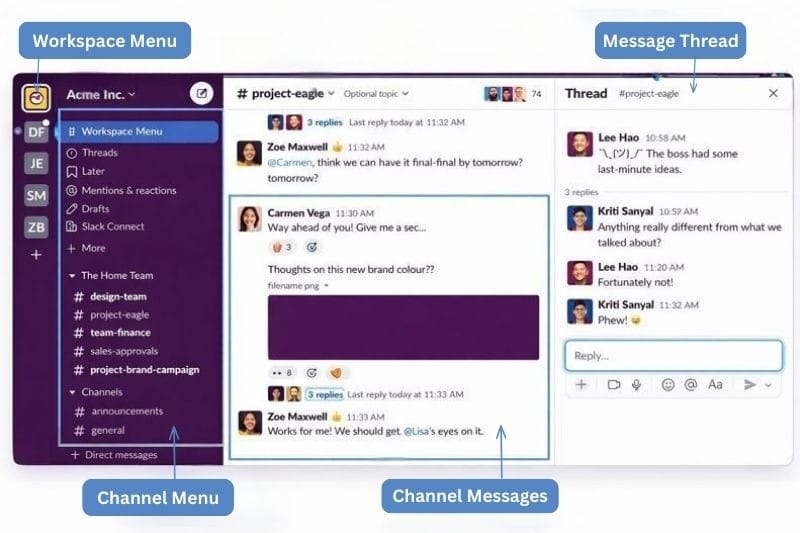
When you open Slack for the first time, the interface may look very busy - but it has a simple structure underneath it all. Understand this structure, and you’ll be able to navigate through everything in Slack.
- Workspace Menu/Sidebar - A workspace is like a headquarters where different teams gather. Here you’ll find default channels, the channel list, a specific person in an organization, and all the Slack apps connected to the workspace.
- Channel Menu - Within different workspaces, you can create or find channels. They can be created according to different teams, projects, client names, or topics. Channels can be public (marked with #) or private.
- Channel Messages - A message sent in a channel can be seen by all the participants. There are also one-on-one messages between team members, and these are called direct messages.
- Message Thread - Threads allow you to respond to one message sent in a channel by hovering over the message and clicking on the: Reply in thread icon.
Now that you understand the basic structure of Slack, let’s dive into each section and run you through what matters in each one.
Channels: The heart of Slack
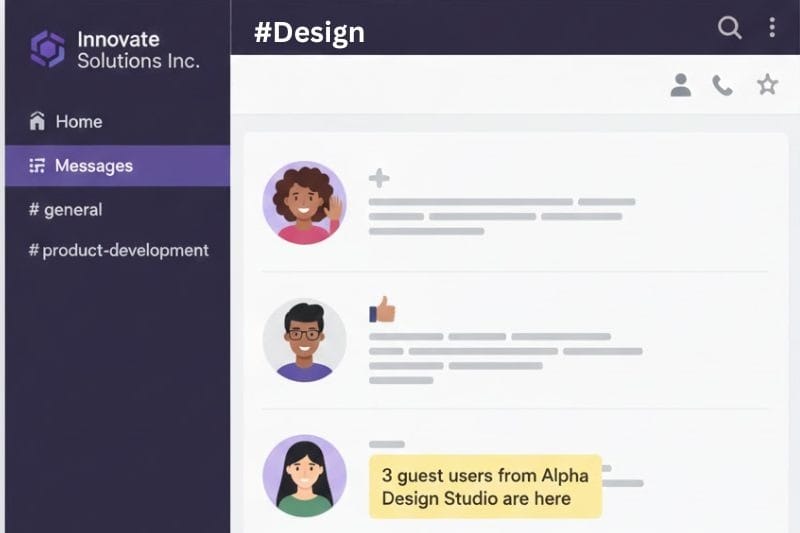
Channels are where all the work in Slack takes place. Everyone uses a channel to communicate, collaborate, and find information about tasks, projects, events, and company happenings. Most channels are either public, where everyone who has joined the channel can see messages, or private for one-on-one messages.
Examples of channels:
- #general: For company-wide communication.
- #announcements: For important information.
- #marketing, #sales, #HR: For department-specific communication.
- #project-X: For specific projects.
- #customer-Y: For specific customers/clients.

Messages: How work gets done in Slack
In Slack, messages are much more than just words. They are really an expression of how you think, speak, and add feeling to what you are saying. In a message, you can do the following:
- Add an attachment or file.
- Show or hide formatting tools.
- Add an emoji, or create custom emojis to express your company’s culture.
- Mention someone with @mention.
- Record a video clip.
- Record an audio clip.
- Start a voice or video call (called a huddle).
- Use a shortcut.
Writing messages in Slack is a unique art form, and just like other work communication, is dictated by workplace etiquette. Before you go any further, check out Slack Etiquette: 8 Tips for Professional Communication to help you write great messages.
Notifications: Managing the Slack information highway

For beginners, the biggest concern is unnecessary notifications, and we don’t blame you. The average Slack user sends 92 messages daily2. Now multiply that by 10 participants in a busy channel, and you get ‘new message’ overload! Thankfully, Slack allows you to choose whether you want to receive notifications.
Start with our Slack Notifications Setup Guide to reduce noise immediately. Then move on to Slack keyword notification: Quick setup guide, to only receive important keyword-related messages. 👈 This one is invaluable for maintaining your sanity!
More tips for beginners: Super smart Slack features
Once you’re comfortable with channels, messages, and notifications, you’ve pretty much got it in the bag. However, there are several features beginners often overlook, yet they can take you from complete novice to Slack Savvy in almost no time.
1. Create a Slack profile
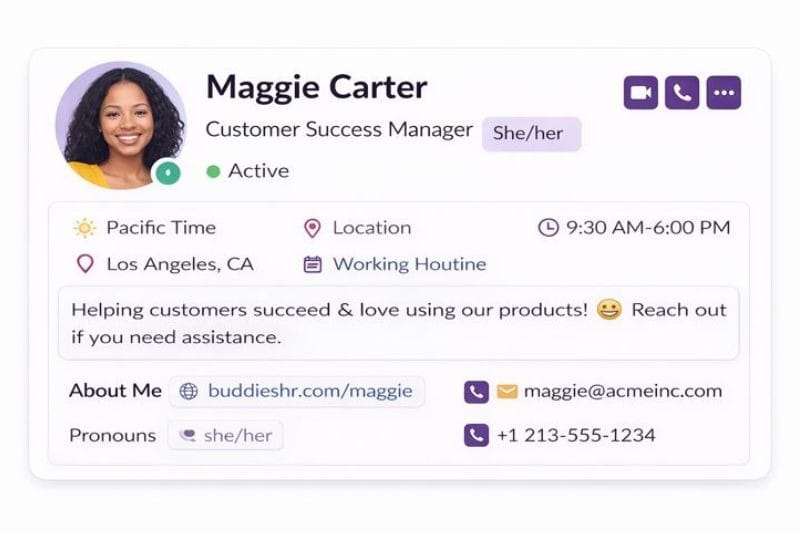
This isn’t just about creating a profile picture and adding some minor details (like your email address). This is the ‘first impression’ you’ll make with your teammates. More companies are using Slack profiles to build their company org structure, so it deserves some attention. Create something special with these tips:
- Take a profile picture that is professional and clear. Head and shoulder shots beat avatars and logos any day. The golden rule: You should be easy to recognize from your profile.
- Add your job title or role. Make sure you use the actual job title you’ve been assigned, so that people can easily find you. Customized titles like ‘world’s greatest Excel guru’ are cute, but not really helpful.
- Add your time zone. This is important if you’re part of a global remote working team. It helps when setting up meetings and video calls.
- Add contact details. We know sometimes you’d like to be anonymous, but people need to know where to reach you. Include your email and phone number (if appropriate).
Working across time zones requires a special skill, which you can learn here 👉Slack Guide: Work Across Time Zones.
2. Slack status and work hours
Slack status is a small feature, but it has a big impact. It’s the first place your coworkers look when you’re AWOL (missing in action), and they’re trying to find a clue to your whereabouts. With Slack status, you can let your colleagues know you’re on vacation, in a meeting, taking ‘focus time’, or done for the day.
In Slack, you can also set your work hours, which lets you tailor the times you’re available. Set a ‘do not disturb’ for times that you’re off the clock, and a ‘pause notification’ setting for when you’re on a lunch break, or need time to focus.
Expert tip: Save time with Slack status automation, where you automate your status based on calendars, locations, and working hours.
3. Emojis, reactions, and workplace tone
Emojis are one of Slack’s powerful communication tools. They let you acknowledge messages quickly without needing to send a ‘thank you’, ‘noted’, or ‘got it’.
- 👍 to confirm you’ve seen something
- 👀 to show you’re reviewing it
- 🎉 to celebrate progress
- ❤️ or 🙌 to show appreciation
Some companies create custom emojis to help them reflect their unique company language. Used correctly, emojis are a way to speed up communication without sacrificing professionalism.
4. Search: Your secret weapon
Search is the most helpful tool that beginners should know about. In search, you can find people, conversations, files, threads, and channel messages - even from months ago. This means you don’t have to remember where everything is (like with email folders). If it happened in Slack, you’ll find it using the search function and keywords. Once you see how easy it is to find things, the pressure to ‘keep up’ disappears.
5. Voice, video call, and screen sharing features
With Slack, you don’t need to leave the platform to make a voice or video call. If typing the conversation becomes complicated, start a huddle or go to the Slack marketplace to use a third-party app of your choice. You can also share your screen in a voice or video call, making it easier to explain ideas or show participants what you’re looking at.
To screen share during a huddle:
- Open a channel message.
- Look for the screen sharing icon at the bottom of the screen (monitor with an arrow).
- Select whether to share your entire screen, application, or browser tab.
- Click share to begin.
6. Slack apps
Unlike email applications, Slack greatly extends what you can do inside the platform. With third-party apps found in the Slack Marketplace, you can build sales, marketing, finance, HR, productivity, and project management into your Slack Workspace. This will allow you to automate tasks, centralize notifications, and create a more efficient engagement system for business data.
And with that last point being made, it concludes the BuddiesHR guide on Slack tips for beginners. As we conclude, let's focus on some final thoughts. 👇
Final Thoughts
Slack is an essential communication platform for businesses. Beginners can easily learn to navigate key features of Slack with just a few practical tips. Once new users learn how to use channels, create new messages, set notifications, and respond to message threads, there’s not much more to it.
By adding third-party tools, like the BuddiesHR employee engagement apps, you’ll get even more value from Slack, turning it into your headquarters for business processes and communication. You can learn more about these apps here 👇
FAQs: Slack tips for beginners
1. Is Slack difficult for beginners?
No, Slack's user interface makes it easy to use. However, it is completely different from email, in that it’s considered an instant messaging platform for work. Once most beginners understand channels, messages, and notifications, they can use Slack. Slack is designed to be used with very little knowledge and encourages learning as you use the platform.
2. How do I stop Slack from sending too many notifications?
There are plenty of ways you can reduce message notifications in Slack. You can mute low-priority channels, limit alerts to mentions, set working hours, and use keyword notifications to be alerted on important topics.
3. When should I use direct messages instead of channel messages?
Direct messages are used when you want to communicate directly with someone (like another team member or your manager). The assumption around a direct message is that it is either a confidential message, applies only to one person, and doesn’t affect a task, project, or deadline that many people are working on together. A good rule is: If it will give context or helpful information to others, then use a channel message.
References